
Quick answer: Select Groups, then Add New Group. Set the criteria users must match, add more profiles or individual users if you need to, and click Save.
What are groups?
Groups allow you to organise users based on shared attributes such as country, role or office location.
They are commonly used for:
- Assigning training to specific users
- Filtering reports
- Managing users at scale
- Applying rules or reminders to defined audiences
Groups are dynamic, meaning users are automatically included if they match the criteria you define.
Before you begin
Groups are a feature of VinciWorks LMS Professional. If you don't see Groups in your menu, ask support to check your access.
Open Groups
- From the menu on the left side of the page, select Groups.
- Click Add New Group.
- Enter a Group Name and, if you like, a Description.
Define your first group profile
A group is made up of one or more profiles.
Each profile contains a set of criteria that users must match to be included.
- Under Users whose, choose a field, condition and value for your first profile.
For example, to create a group of all users in Australia:
- Field: Country
- Condition: Equal To
- Value: Australia
This will include all users where Country is set to Australia.
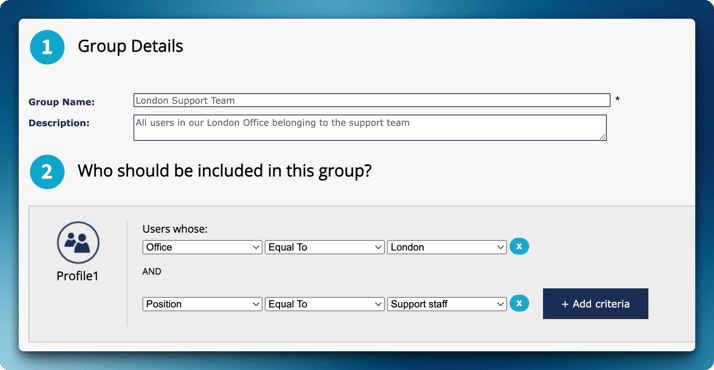
Add more criteria (optional)
You can refine your group further by adding more criteria.
Each additional condition will narrow the group.
- Click Add criteria.
For example, to include only Australian Fee Earners:
- Country → Equal To → Australia
- Position → Equal To → Fee Earners
Only users matching both conditions will be included.
Add more profiles (optional)
You can include multiple profiles within a single group, to combine different sets of users. Each profile acts as an "or".
- Click Add Member Profile.
For example:
Profile 1:
- Country → Equal To → Australia
- Position → Equal To → Fee Earners
Profile 2:
- Office → Equal To → London
- Position → Equal To → Support Staff
This group will include:
- Australian Fee Earners
OR
- London Support Staff
Add users individually (optional)
If some users don't match your criteria but should still be included:
- Tick I want to add group members individually.
- Search for the users and add them.
Save the group
- Once all criteria and users are set, click Save.
Your group is created and will automatically update as users match the criteria.
Note: Users are added automatically if they match the criteria and removed automatically if they no longer match. Users you add individually are always included, regardless of criteria.
Related articles: Enrolling a group in online courses