
Quick answer: Open the user's training record and click Certificate next to the completed course. To get several at once, use Reports > KPI. Learners download their own from History.
Download one user's certificate
- Go to User Management > Users and find the user.
- Click the training record icon on their row.
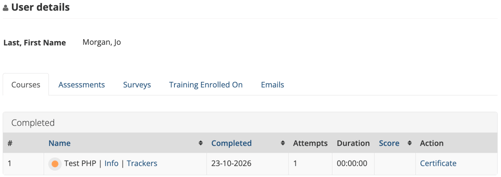
- On the Courses tab, find the course under Completed and click Certificate in the Action column. It opens as a PDF.
Download several certificates at once
- Go to Reports > KPI.
- On the Activity Report tab, choose the Period and the Course, then click Apply.
- Click the number in the Completed column for the course.
- Tick the users you want, or tick the box at the top to tick everyone on the page.
- Click Certificate.
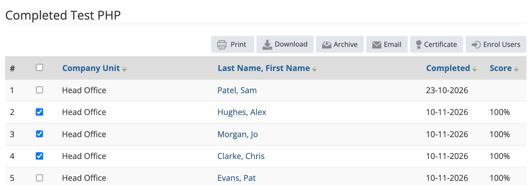
Tip: The same list also has Print, Download, Archive, Email and Enrol Users.
Download your own certificate (learners)
- Click History in the top menu.
- Find the course and click Certificate.
Something isn't working?
There's no "Certificate" link
The course isn't completed yet. Ask the learner to open it from To Do, go to the last screen and finish it using the button inside the course (in VinciWorks courses, Complete the course). If it still isn't completed, contact support.
The certificate is for an IOSH course
IOSH certificates come from the accrediting body, not WorkWize. Contact support if one is missing.
The wording on the certificate is wrong
The certificate uses the course name. Contact support to change it.
I can't see "Certificate"
Ask support to check your access.
Related articles: Checking a user's training record · Seeing who has completed their training · Finding and completing your training