
Quick answer: Your training is on the To Do page. Click Start or Continue, and finish each course using the button inside the course before you close the course window.
Find your training
- Click To Do in the top menu.
- Look under In Progress for training you've started, and under Enrolments for training you haven't.
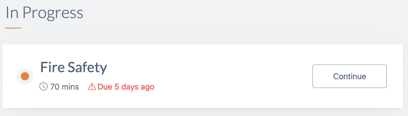
- Check when each one is due, such as "Due in 5 days". Overdue training shows "Due 5 days ago".
Tip: Sort the list by Name, Duration or Time remaining.
Complete a course
- Click Start, or Continue for one you've started.
- Work through the course.
- On the last screen, finish the course using the button inside it, then close the course window. In VinciWorks courses, select Complete the course.
Tip: If you exit a course part way, it saves your place. Click Continue to carry on.
See what you've completed
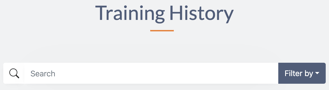
- Click History in the top menu.
- Use Filter by to show All, Complete, Failed to start or Failed to complete:
- Failed to start: you didn't open it before the enrolment ended.
- Failed to complete: you opened it but didn't finish in time, or failed the test too many times.
- For an assessment, click Summary to download your assessment summary.
See the emails you've been sent
- Open your account menu, then click Emails.
- The Email Log lists each email and the date it was sent.
Something isn't working?
I finished a course but it still says "In Progress"
Open it again from To Do, go to the last screen and finish it using the button inside the course (in VinciWorks courses, Complete the course). If it still says In Progress, ask your administrator to contact support.
My "To Do" list is empty
Training drops off the list once its end date has passed. Ask your administrator to enrol you again.
I didn't get my enrolment email
Check the Email Log to see if it was sent, then look in your spam and other folders.
Related articles: How do I log in or reset my password?