
Quick answer: A learner's courses are set by the enrolment event they're in. To change them, move the learner to an event that has the right course, or open their current event and change the course on the Activities tile. This changes the course for all learners in that event.
Choose the change you need
- The learner is in the wrong event: move them to the right event.
- The event has the wrong course for everyone in it: change the course in the event.
- One course needs removing from one learner: contact support. A learner can only be removed from a whole event, not a single course.
Move a learner to a different event
- Take the learner off their current event. See Removing a learner from an enrolment event
- Add them to the event with the right course. See Adding and enrolling a new learner
- Check the learner shows on the new event's Learners list.
Important: Until you click Action Changes, the learner stays at Pending and isn't enrolled.
Note: Removing a learner takes them off every course in that event. Their completions are still in LXP Reporting, on a report that shows all learners (enrolled and unenrolled), and their certificates are kept. Completions on that event no longer show in Compliance Reporting.
Change the course in an event
Use this when all learners in an event need a different course, for example when a newer version of the course has been published.
Important: Changing the course affects everyone in the event, and completions of the old course don't carry over to the new one. Old completions will no longer appear in Compliance Reporting, but they're still in LXP Reporting.
If learners need to keep their completions on the new course, don't make the change. Contact support and include:
- The event name
- The current and new course names
- Why the course needs swapping
- In the menu (top right), search for Enrolment events, find the event and click Edit.
- Click Activities.
- Click Add Activities, select the new course and click Add Selected Activities.
- Click the bin icon on the old course. Astute shows a warning.
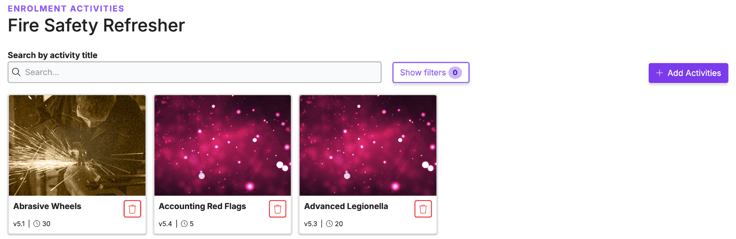
- Read the warning, then click Remove Activity to confirm.
The new course goes to every learner on the event. Whether learners already on the event get an enrolment email for it depends on how your enrolment emails are set up. See Creating an enrolment event
Something isn't working?
The learner was enrolled again
The event's rules still match them, so they're enrolled again. Change their department or job title so they no longer match, or give them a value in an additional field and add a not in rule that leaves that value out. See Enrolling learners automatically with rules
I can't see "Remove Selected"
Ask support to check your access. See Removing a learner from an enrolment event
The learner is still at "Pending"
Click Action Changes. If you already have, the event's Start Date, or the learner's own Start Date, is in the future. They stay at Pending until that date.
I only want to remove one course from one learner
Contact support with the learner's username and the course name.
The learner has left or is on long-term leave
Don't move them. Deactivate them instead. See Managing leavers and long-term leave
Related articles: Checking a learner's progress · Creating an enrolment event