
Quick answer: Open the course in Courses, click Review and edit, then switch to Edit and click into any text to change it. Your changes save as you go. When you're done, publish the course so your learners get the new version.
Open the course editor
- Click Courses.
- Click the course you want to change.
- Click Review and edit. The course opens in a new tab.
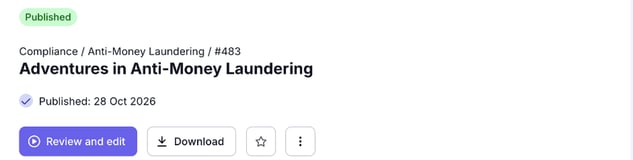
- At the top of the page, click Edit.

Make your changes
- Click into any text to change it.
- Add your own pages, and choose a layout for each one.
- Click Upload your logo (bottom left) to add your organisation's logo.
Your changes save as you go, and AI narration updates to match your edits. If the editor shows Audio out of date, click Resync audio so the narration matches your new text.
Use AI for bigger changes
The AI chat is useful for changes across a whole course. Every organisation gets some free AI credits to try it.
- In Edit, click the arrow at the top left to open the AI chat.
- In What do you want to change?, describe the change.
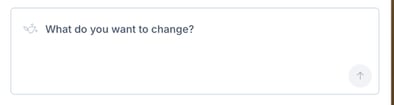
- Check the changes in the course before you publish.
Publish your changes
An edited course shows as Draft until you publish it. Your learners get the new version once it's published.
- Go back to Courses and click the course.
- Click Publish.
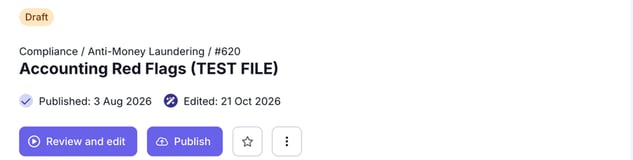
- Click Publish again to confirm.
Something isn't working?
I can't see "Review and edit"
Some courses, such as conversational courses, show Customise instead. If you see neither, ask support to check your access.
I can't see the AI chat
Your organisation may not have AI editing yet. Ask support to check your access.
My learners still see the old version
Check the course shows Published, not Draft. If your courses run on your own LMS, they normally update by themselves, because the Portal's SCORM packages always load the latest published version. If they don't, your LMS may have an older package, for example from an earlier way of getting the courses. Download the course again and replace the old package in your LMS.
I can't add a page
Adding pages is part of enhanced editing, which most organisations have. Ask support to check your access.
Related articles: Publishing courses · Duplicating courses