
Quick answer: In Assignments, click Create Assignment, name it, then choose courses, learners, dates and emails. Check the summary and click Create assignment, or save it as a draft.
This is for organisations that use Portal Assignments to give training to their learners.
Create an assignment
- Click Assignments.
- Click Create Assignment.

- At the top, click Enter Assignment name and type a name.
- Tick the courses to include. To use a learning plan, click the Learning plans tab.
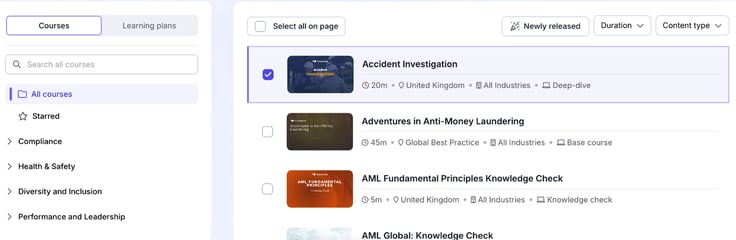
- Click Next: Learners, then tick the learners, using the search and filters on the left.
For a whole user group, click Browse by user groups instead.
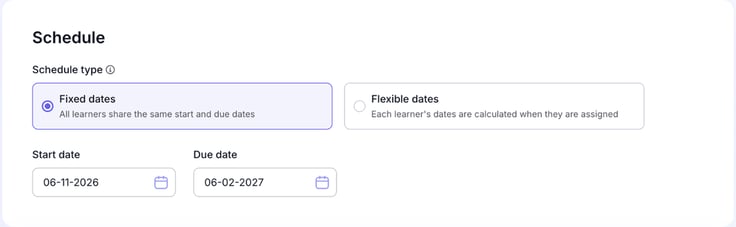
- Click Next: Scheduling and choose fixed or flexible dates. For single-course dates, delays and optional courses, see Scheduling an assignment.
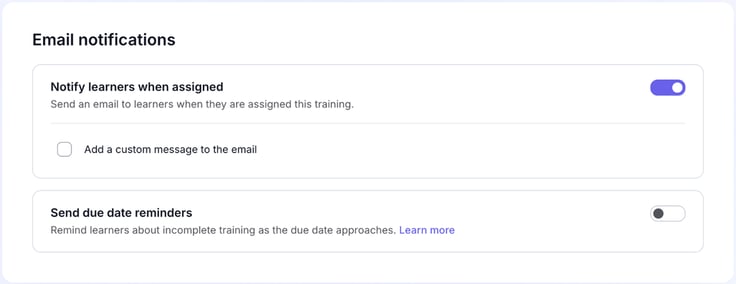
- Click Next: Notifications and choose which emails learners get.
- Click Next: Review and check the summary.
- Click Create assignment, or Save as draft to finish it later.
Choose your emails
- Notify learners when assigned emails people when they're assigned the training. Tick Add a custom message to the email to add your own note.
- Send due date reminders emails learners who haven't finished. Click Add reminder to send more than one.
Edit or view an assignment
- Click View on an assignment to see its learners and courses. You can search both lists and download them as CSV files.
- Click the three dots at the end of its row to Edit, Duplicate or Delete it.
- Once it's past due or completed, the three dots also offer Archive.
- You can change reminders after you create an assignment, for example to send them 14, 7 and 3 days before the due date.
Important: You can't delete an assignment once a learner has started it or a deadline has passed. Deleting can't be undone, and learners lose access to its courses.
See how optional courses are going
- An Optional only assignment shows how many courses were taken, such as "1 of 4 taken", on the Assignments page, not a completion percentage.

- The figure counts each learner once for each optional course: 2 learners and 2 optional courses make 4.
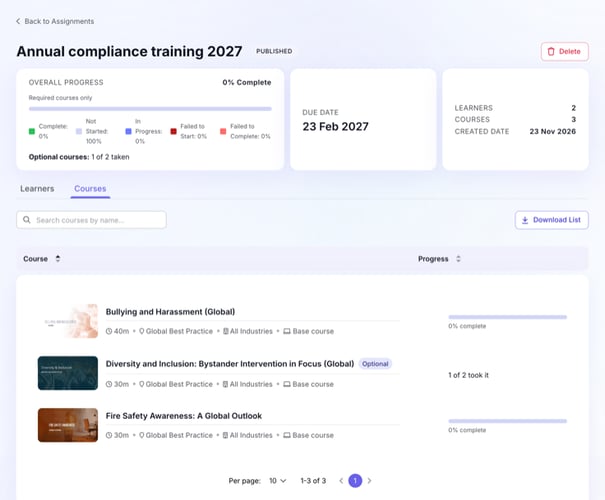
- In View, Overall progress counts required courses only, with the optional uptake below it, for example "Optional courses: 1 of 2 taken".
- The Courses tab marks optional courses and shows how many learners took each one.
- The Learners tab shows how many optional courses each learner took.
- A learner counts as having taken an optional course once they've started it, even if they turn it down later.
Something isn't working?
A learner didn't get the email
Check Notify learners when assigned was on, and that their email address is right in Users.
I can't delete an assignment
A learner has started or finished it, or a deadline has passed. Once it's past due or completed, you can archive it instead. To have it deleted anyway, contact support.
I can't see "Assignments"
Ask support to check your access.
Related articles: Scheduling an assignment · Generating a training report · Creating a learning plan · Adding and editing users